
OCR API — Extract Text from Images
Send an image, get back recognised text with bounding boxes, per-block confidence, and detected language — in one REST call. Built for developers who want OCR as a managed service, not a project.
Published 2026-05-21
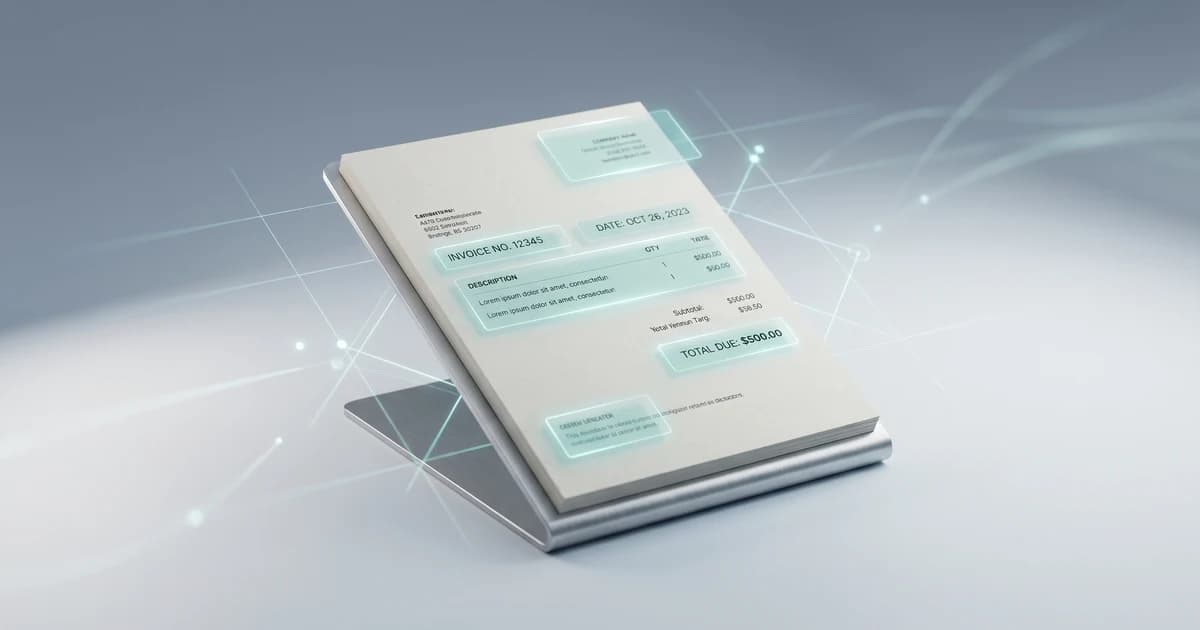
TL;DR. To extract text from an image using an API, POST the image as multipart/form-data to Pixicular's image analysis API with services=detect-text. The response is one JSON document with each recognised text block, its bounding box, detected language, and confidence score. No SDK, no local model, no manual region detection.
How does an OCR API turn an image into text?
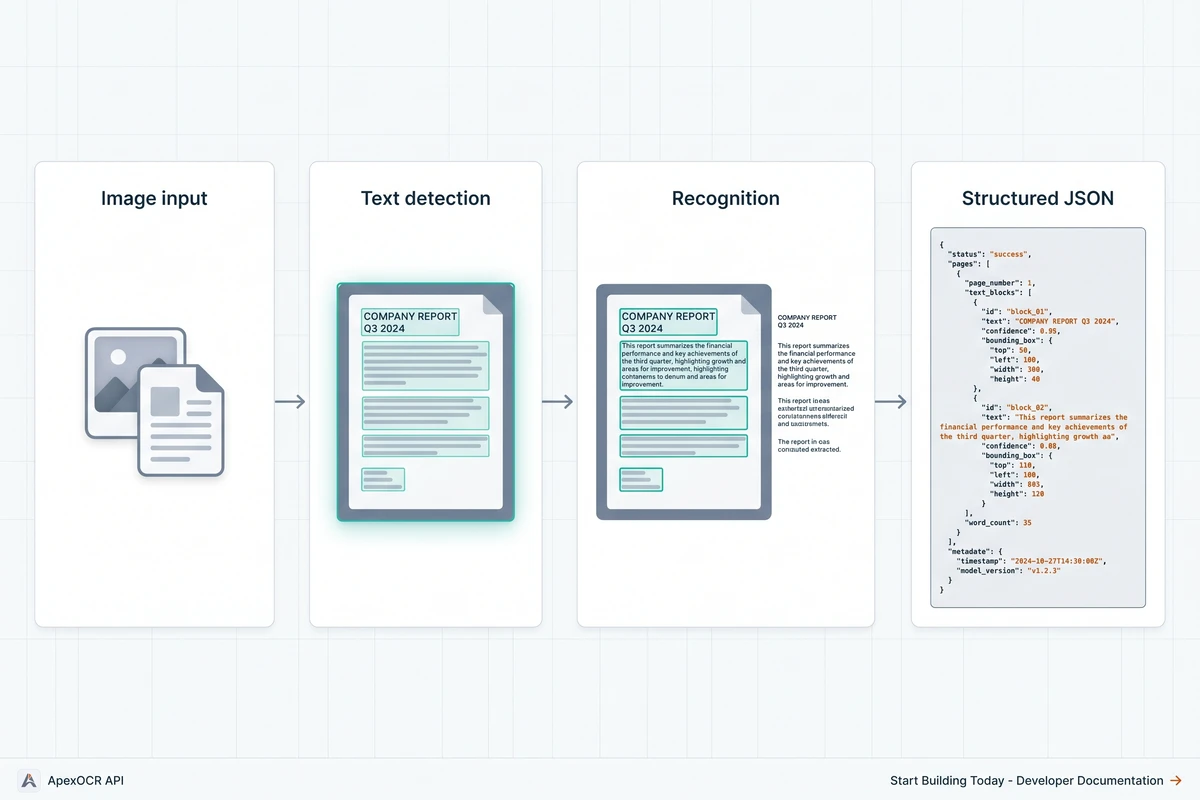
An OCR (optical character recognition) API takes a raw image as input and returns structured text as output. The Pixicular implementation runs each upload through a short pipeline: image decoding and light pre-processing (skew correction, contrast normalisation), text-region detection that locates every block of text in the frame, character recognition on each detected region, and a final assembly step that bundles the recognised text together with its bounding box, type, detected language, and a per-block confidence score.
That structure matters more than the raw string of recognised characters. A flat blob of text loses the spatial relationship between, for example, a price and the product label next to it. The per-block format preserves that layout so your application can reason about where text sits in the image — useful for receipts, forms, screenshots of UI, signage, and any document where order and grouping carry meaning.
Which types of text can the OCR API recognise?
The service is trained to handle the three text categories most applications encounter — printed, stylised, and handwritten — and labels each recognised block in the response with its type so you can route blocks differently downstream.
| Text type | Common examples | Typical per-block confidence |
|---|---|---|
| Printed | Book pages, invoices, receipts, product packaging, official documents, screenshots of UI text | 0.95 – 0.99 on clean inputs at 1000 px or more |
| Stylised | Logos, shop signs, marketing banners, custom typography, decorative menu headings | 0.85 – 0.97 depending on font weight and contrast |
| Handwritten | Notes, whiteboard sketches, survey forms, prescription scribbles, postal addresses | 0.70 – 0.92 on clear handwriting; lower on cursive |
For identity-document text specifically — passports, driving licences, national ID cards — the same detect-text service also returns parsed fields and MRZ data; see the ID document OCR for KYC guide for the document-specific schema.
What does the JSON response look like?
The response is a single JSON document with a top-level key per requested service. For detect-text the value contains a blocks array, a concatenated fullText string for convenience, and a detectedLanguages array summarising the languages found in the image.
{
  "detect-text": {
    "blocks": [
      {
        "text": "OPEN 24 HOURS",
        "type": "printed",
        "languageCode": "en",
        "boundingBox": { "x": 0.18, "y": 0.12, "width": 0.64, "height": 0.18 },
        "confidence": 0.99
      },
      {
        "text": "FRESH COFFEE",
        "type": "stylised",
        "languageCode": "en",
        "boundingBox": { "x": 0.22, "y": 0.36, "width": 0.56, "height": 0.16 },
        "confidence": 0.94
      },
      {
        "text": "Daily soup: tomato basil",
        "type": "handwritten",
        "languageCode": "en",
        "boundingBox": { "x": 0.10, "y": 0.62, "width": 0.78, "height": 0.10 },
        "confidence": 0.81
      }
    ],
    "fullText": "OPEN 24 HOURS\nFRESH COFFEE\nDaily soup: tomato basil",
    "detectedLanguages": ["en"]
  },
  "meta": {
    "processingTimeMs": 286,
    "requestId": "req_3f4b9c01"
  }
}
Every block carries four useful pieces of context in addition to the recognised text: a type (printed, stylised, or handwritten), a languageCode detected from the recogniser, a normalised boundingBox (0–1 against the original image dimensions), and a confidence score. The bounding box stays correct after a client-side resize because it is fractional. The full schema, including error shapes and rate-limit headers, is in the API documentation.
Which languages and scripts are supported?
The recogniser handles Latin (English, French, Spanish, German, Italian, Portuguese, Dutch, Nordic languages, and more), Cyrillic, Greek, Arabic, Hebrew, and CJK scripts (Simplified and Traditional Chinese, Japanese, Korean) out of the box. Language detection happens automatically per block, so you do not need to send a language hint and you do not have to call the API twice for a bilingual sign or a multi-language receipt. The detected code is returned on every block, and the top-level detectedLanguages array gives you a quick aggregate for routing logic.
Right-to-left scripts (Arabic, Hebrew) are returned in logical reading order, not visual order, so string operations like substring search work as expected without bidirectional shaping on your side. Mixed-direction lines — say, an English brand name embedded in Arabic body text — preserve the per-block separation so each block is internally uni-directional.
How do you call the OCR API?
Authentication is a bearer token in the Authorization header. Images are uploaded as multipart/form-data; JPEG, PNG, and WebP are accepted up to 10 MB per request. Pass the service name in the services form field — or a comma-separated list if you want OCR alongside other services in the same call.
curl
curl -X POST https://api.pixicular.com/detect \
  -H "Authorization: Bearer $PIXICULAR_API_KEY" \
  -F "image=@./shop-sign.jpg" \
  -F "services=detect-text"
TypeScript — typed extraction with confidence-based routing
// Extract text from any image with the Pixicular OCR API
interface OcrBlock {
  text: string;
  type: "printed" | "stylised" | "handwritten";
  languageCode: string;
  boundingBox: { x: number; y: number; width: number; height: number };
  confidence: number;
}

interface OcrResponse {
  "detect-text": {
    blocks: OcrBlock[];
    fullText: string;
    detectedLanguages: string[];
  };
  meta: { processingTimeMs: number; requestId: string };
}

async function extractText(imageFile: Blob): Promise<OcrResponse> {
  const body = new FormData();
  body.append("image", imageFile);
  body.append("services", "detect-text");

  const res = await fetch("https://api.pixicular.com/detect", {
    method: "POST",
    headers: { Authorization: `Bearer ${process.env.PIXICULAR_API_KEY}` },
    body,
  });

  if (!res.ok) throw new Error(`OCR request failed: ${res.status}`);
  return res.json();
}

// Usage: keep high-confidence blocks, queue the rest for review.
const result = await extractText(file);
const confident = result["detect-text"].blocks.filter((b) => b.confidence >= 0.9);
const review = result["detect-text"].blocks.filter((b) => b.confidence < 0.9);
Combine detect-text with other services — for example to read text on a claim photo while flagging staging signals, as covered in the insurance claim photo analysis guide. The image is decoded once and routed to each service in parallel, so a multi-service request is meaningfully cheaper than several round-trips.
How does Pixicular OCR compare to Google Vision and Tesseract?
Three OCR options dominate developer evaluations: a managed multi-service API like Pixicular, a hyperscaler API like Google Cloud Vision, and the self-hosted open-source engine Tesseract. All three can convert an image into a string of text; they differ on integration complexity, output shape, pricing, and what you have to operate yourself.
| Capability | Pixicular OCR | Google Vision OCR | Tesseract |
|---|---|---|---|
| Hosting model | Managed REST API | Managed REST API | Self-hosted open-source binary |
| Integration | One POST, multipart/form-data, JSON back | REST or gRPC; service-account auth; per-feature requests | CLI or language bindings; you host, scale, and update |
| Pricing model | Monthly plan including OCR plus other image services | Per-feature, per-1,000 images; OCR billed separately | Free; pay for the infrastructure you run it on |
| Output schema | Blocks with text, type, language, bounding box, confidence | Pages, blocks, paragraphs, words, symbols (deep tree) | Plain text, hOCR, ALTO, TSV — pick a format and parse |
| Multi-language detection | Automatic per-block; Latin, Cyrillic, Greek, Arabic, Hebrew, CJK | Automatic; very broad language coverage | Manual language data packs per call (e.g. -l eng+fra) |
| Handwriting support | Yes, with per-block confidence to drive review queues | Yes (DOCUMENT_TEXT_DETECTION), strong on printed text | Limited; LSTM model is trained primarily on print |
| Multi-service in one call | Yes — combine detect-text with labels, moderation, age | Multiple features per request, billed individually | OCR only; combine other tools yourself |
| Learning curve | Read the docs, send one curl, parse one JSON object | Service accounts, IAM, per-feature request shapes | Install, tune page-segmentation modes, manage updates |
The honest summary: Tesseract is excellent if you already run infrastructure, want zero per-call cost, and are happy parsing hOCR. Google Vision is broad and battle-tested but requires service-account setup and per-feature billing that adds up once you want OCR plus moderation plus labels. Pixicular bundles OCR with the other image services behind one endpoint and one billing line, with a flat per-block JSON shape — see the pricing page for monthly tiers.
What about image quality, file formats, and limits?
Three rules cover most quality issues without any model experimentation:
- Resolution: at least 1000 px on the shorter side for document text; 1500 px or more for small print, MRZ lines, or dense multi-column layouts.
- Focus and lighting: motion blur and harsh shadows hurt accuracy more than resolution does. A sharp 1000 px photo beats a blurry 4000 px one every time.
- File format: send JPEG, PNG, or WebP. The Pixicular web client compresses files above 4 MB before upload to keep requests within the envelope, so end-users can submit phone photos without you building a compression step yourself.
The per-block confidence score is the right tool for handling quality variance in production. Rather than hard-failing requests that scored below an arbitrary global threshold, treat each block independently: extract the high-confidence blocks, surface the low-confidence ones in a review interface, and persist the request ID so the original response can be re-evaluated when your thresholds change.
When should you use an OCR API instead of running OCR yourself?
The decision boils down to volume, infrastructure ownership, and the rest of the analysis you need. A managed OCR API is the right call when text extraction is one capability among several you want from each image — labels, moderation, age estimation, OCR — and you want one billing line, one auth model, and one JSON contract. It is also the right call when you do not want to operate model updates, GPU instances, and language data packs on your own time.
Self-hosting Tesseract makes sense when OCR is the only thing you need from the image, when your volume is large enough to dwarf any per-call API price, and when your team is already comfortable running Linux services. The trade-off is real: tuning page-segmentation modes, keeping language packs current, and integrating handwriting models all become your problem rather than a vendor's.
For teams that need OCR plus other image-analysis services in one call — for example moderation on user-uploaded receipts, or label detection alongside text extraction in claim photos — the composition cost matters more than the per-call cost. One request returning one JSON object beats orchestrating three services on your side.
Frequently asked questions
How do you extract text from an image using an API?
POST the image as multipart/form-data to the Pixicular API and request the detect-text service. The API decodes the image, detects all text regions, runs character recognition on each region, and returns a JSON document containing the recognised text blocks with normalised bounding boxes, per-block confidence scores, and a detected language code. One request, one JSON response — no SDK, no local model, no manual region detection.
How accurate is the OCR API?
Accuracy is high on clean, in-focus printed text at adequate resolution and degrades gracefully on harder inputs. Printed text at 300 dpi or better routinely scores above 0.95 confidence per block. Stylised fonts, low contrast, motion blur, extreme perspective, and handwriting drop confidence — which is why every block carries a confidence score in the response. Treat low-confidence blocks as candidates for manual review or a second-pass workflow rather than discarding them silently.
Which image file formats are supported?
The OCR API accepts JPEG, PNG, and WebP uploads up to 10 MB. Files larger than 4 MB are compressed client-side before upload to fit within the request envelope. For the highest-quality OCR, send the original capture rather than a re-encoded thumbnail — at least 1000 pixels on the shorter side is a reasonable floor for document text, and 1500 pixels or more for very small text or MRZ-style identifiers.
Does the OCR API support languages other than English?
Yes. The service recognises Latin, Cyrillic, Greek, Arabic, Hebrew, and CJK (Chinese, Japanese, Korean) scripts, with detected language returned per text block so multi-language images are handled in a single request. You do not need to declare a language hint up front — the recogniser detects script and language per region. For mixed-language documents such as bilingual signage, each block in the response carries its own languageCode field.
Can I extract handwritten text with the OCR API?
Yes, with caveats. The recogniser handles clear, separated handwriting reasonably well and returns confidence scores you can threshold on. Highly cursive script, overlapping strokes, or low-contrast pencil on paper degrade accuracy faster than printed text does. For production handwriting workflows — for example doctor's notes or freeform survey responses — plan for a human-in-the-loop review queue based on per-block confidence rather than expecting fully automatic extraction.
Add OCR to your application with one API call
The fastest way to evaluate the detect-text service is to POST a representative image with a single curl command and look at the JSON. Pick a plan on the pricing page, follow the API documentation for auth and rate limits, and combine this OCR guide with the ID document OCR and insurance claim photo analysis pages for use-case-specific schema detail.