
ID Document OCR for KYC
Extract structured data from passports, driving licences, and national IDs with a single API call — name, date of birth, document number, and more returned as JSON for onboarding and KYC flows.
Published 2026-05-18
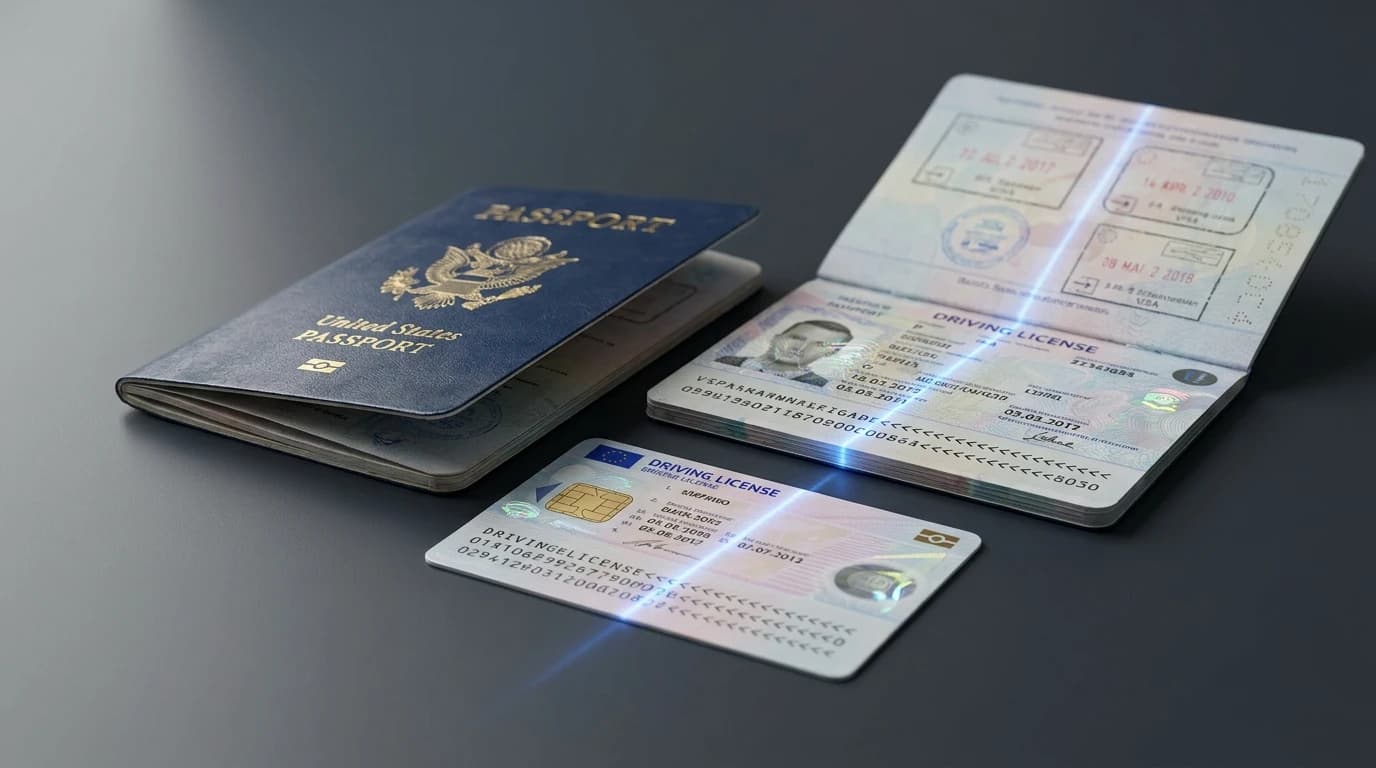
detect-text service maps raw OCR output to labelled fields your KYC pipeline can consume directly.TL;DR. To extract text from an ID document with an API, POST the image to Pixicular and request the detect-text service. The API locates text regions on the document, runs character recognition, and returns both raw text blocks and structured fields — name, date of birth, document number, expiry — as JSON in one call. No manual parsing required.
How does ID document OCR work?
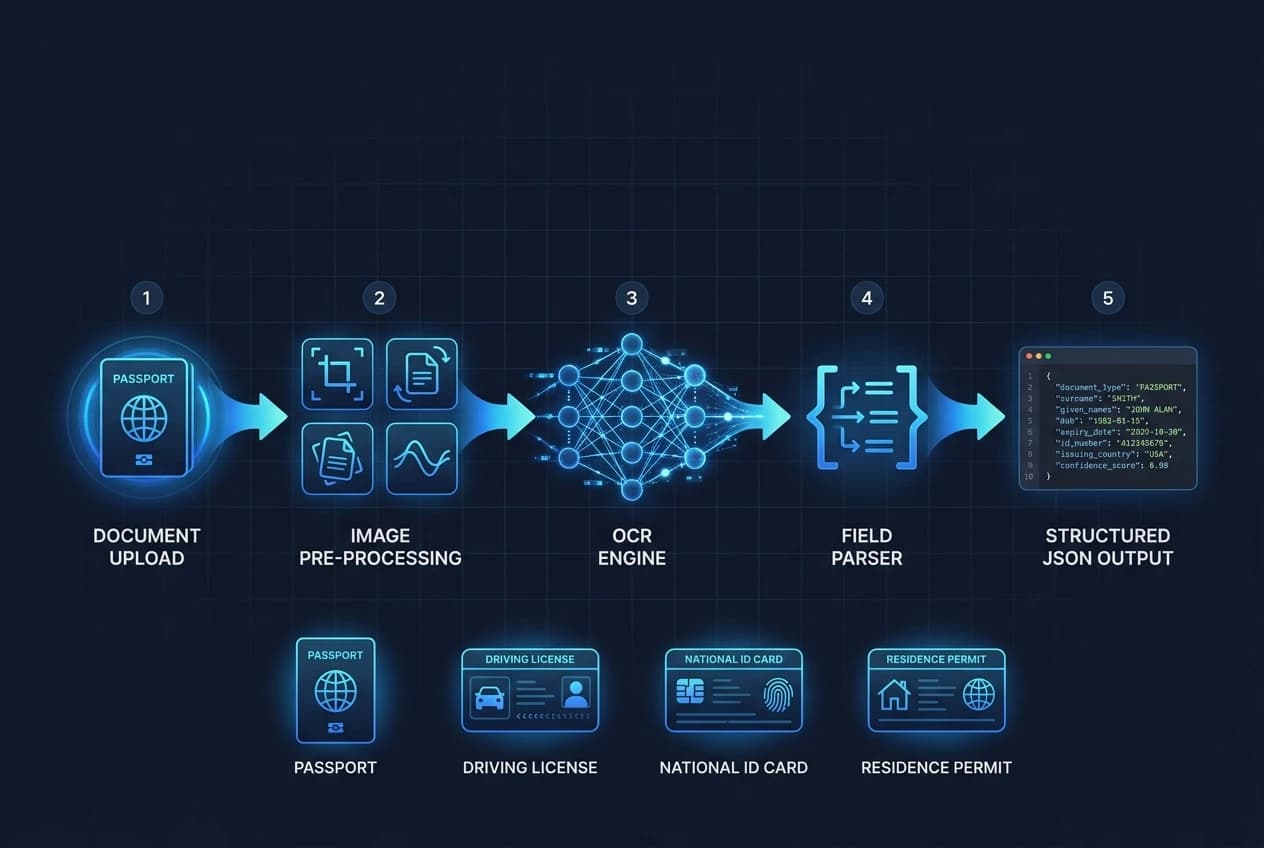
The detect-text service processes the uploaded image through a pipeline designed for document images. First, the image is pre-processed: skew correction, noise reduction, and contrast normalisation bring degraded scans closer to the model's training distribution. Second, a text-region detector locates all text zones on the document surface, including the MRZ strip at the bottom of passports and ID cards. Third, each region is passed through character recognition tuned for the alphanumeric character sets used in identity documents. Fourth, the raw recognised text is matched against known document templates to extract and label named fields — surname, given names, date of birth, document number, expiry date, and address where present.
The response contains both the structured fields object and a rawText array with bounding boxes and per-block confidence scores. Your application can consume the structured fields directly and fall back to the raw text for fields the parser did not map, without making a second API call. Refer to Pixicular's image analysis API for the full list of supported services.
Which document types are supported?
The service handles the four document families most commonly encountered in fintech and lending onboarding:
| Document type | Fields extracted | MRZ support |
|---|---|---|
| Passport | Surname, given names, nationality, date of birth, sex, place of birth, issue date, expiry date, document number | Two-line TD3 MRZ parsed automatically |
| Driving Licence (DVLA / EU card) | Surname, given names, date of birth, licence number, categories, valid from, expiry, address, issuer | No MRZ; barcode on rear where present |
| National ID Card | Surname, given names, nationality, date of birth, personal number, expiry, issuer country | Two-line TD1 or TD2 MRZ parsed automatically |
| Residence Permit | Holder name, permit number, valid from, expiry, permit type, issuer authority | Two-line TD1 MRZ where present |
For documents not in the template library, the service still returns all recognised text blocks with bounding boxes and confidence scores — you parse the fields on the client side. Consult the API documentation for the current template coverage list.
JSON response format — driving licence example
The response includes a top-level key for each requested service. For detect-text, the value contains a fields object with named key-value pairs, a rawText array with all recognised text blocks and their positions, and, where present, a parsed mrz object.
{
  "detect-text": {
    "fields": {
      "documentType": "DRIVING_LICENCE",
      "surname": "GIBSON",
      "givenNames": "EMILY SARAH",
      "dateOfBirth": "1990-03-15",
      "licenceNumber": "GIBSO901150EM9",
      "validFrom": "2020-06-20",
      "expiryDate": "2030-06-19",
      "address": "14 Oak Lane, Bristol BS1 4PQ",
      "issuerCountry": "GBR"
    },
    "rawText": [
      {
        "text": "DRIVING LICENCE",
        "boundingBox": { "x": 0.14, "y": 0.04, "width": 0.32, "height": 0.06 },
        "confidence": 0.99
      },
      {
        "text": "GIBSON",
        "boundingBox": { "x": 0.29, "y": 0.28, "width": 0.16, "height": 0.05 },
        "confidence": 0.98
      },
      {
        "text": "EMILY SARAH",
        "boundingBox": { "x": 0.29, "y": 0.36, "width": 0.26, "height": 0.05 },
        "confidence": 0.97
      }
    ],
    "mrz": {
      "line1": "P<GBRGIBSON<<EMILY<SARAH<<<<<<<<<<<<<<<<<<",
      "line2": "GIBSO901150EM9GBR9003158F3006198<<<<<<06"
    }
  },
  "meta": {
    "processingTimeMs": 340,
    "requestId": "req_4a7d2b1f"
  }
}
Dates are normalised to ISO 8601 (YYYY-MM-DD). Field keys follow camelCase; unknown fields are surfaced in rawText rather than silently dropped. The full field schema and all supported key names are defined in the API documentation.
Code: calling the ID document OCR API
Authentication uses a bearer token passed in the Authorization header. The image is uploaded as multipart/form-data. JPEG, PNG, and WebP are accepted; documents photographed on a phone should be at least 1000 px on the shorter side for reliable field extraction.
curl
curl -X POST https://api.pixicular.com/detect \
  -H "Authorization: Bearer $PIXICULAR_API_KEY" \
  -F "image=@./driving-licence-scan.jpg" \
  -F "services=detect-text"
TypeScript — KYC onboarding flow
// Onboarding: extract fields from a driving licence scan
async function extractIdFields(imageFile: Blob) {
  const body = new FormData();
  body.append("image", imageFile);
  body.append("services", "detect-text");

  const res = await fetch("https://api.pixicular.com/detect", {
    method: "POST",
    headers: { Authorization: `Bearer ${process.env.PIXICULAR_API_KEY}` },
    body,
  });

  if (!res.ok) throw new Error(`OCR request failed: ${res.status}`);

  const result = await res.json();
  const fields = result["detect-text"]?.fields;

  if (!fields) throw new Error("No text fields extracted — check image quality");

  return {
    fullName: `${fields.givenNames} ${fields.surname}`,
    dateOfBirth: fields.dateOfBirth,          // ISO 8601: "1990-03-15"
    documentNumber: fields.licenceNumber,
    expiryDate: fields.expiryDate,
    address: fields.address,
  };
}

// Discard the original image after extraction — store only
// the structured fields your KYC flow actually needs.
You can combine detect-text with other services — for example age estimation from the document photo — in a single call by passing a comma-separated list to the services parameter. See the API documentation for the multi-service response schema and authentication guide.
OCR accuracy and image quality requirements
Character-level accuracy on clean, undamaged documents at adequate resolution is high. The most common causes of extraction failure are poor image quality on the client side, not model limitations. Before calling the API, validate:
- Resolution: at least 1000 px on the shorter side; 1500 px or more for MRZ line extraction.
- Angle: the document should be roughly flat and front-facing; skews beyond 15 degrees degrade field mapping accuracy.
- Lighting: diffuse light without strong specular glare on laminate surfaces produces cleaner text regions.
- Completeness: the full document surface must be visible; cropped or folded documents will return partial fields only.
The per-block confidence scores in the rawText array let you flag low-confidence fields for manual review rather than blocking the user entirely. A confidence threshold of 0.90 on critical fields (document number, date of birth) is a reasonable starting point; adjust based on your acceptance rate and fraud tolerance.
GDPR, data minimisation, and KYC compliance
Identity document data — including names, dates of birth, document numbers, addresses, and the document image itself — is personal data under the GDPR and equivalent regulations. Processing document images for onboarding generally requires a lawful basis: either a legal obligation (required for regulated financial services under AML/KYC rules) or, for unregulated use cases, explicit consent with a clear purpose statement.
The practical pattern for data minimisation in a KYC pipeline is:
- Send the document image to the
detect-textAPI. - Read the structured fields your KYC flow requires (name, DOB, document number, expiry).
- Store only those fields — not the raw image — against the user record.
- Discard the image from memory and any transit cache immediately after the response is consumed.
- Apply a retention policy to the stored fields consistent with your regulatory obligations (typically the duration of the customer relationship plus any legally mandated retention period).
Document numbers are category-specific personal data in some jurisdictions. Confirm your data protection impact assessment (DPIA) requirements with your data protection officer before launching document scanning for non-regulated use cases. This section is general information, not legal advice. For the broader use case of extracting text from other image types, see the general OCR API guide.
ID document OCR in a KYC onboarding flow
For fintech, neobank, and lending platforms, document OCR is one layer in a broader onboarding stack. A typical flow using Pixicular looks like this:
- Capture: the user photographs their document on their device. A client-side quality check (blur detection, minimum resolution) rejects images before upload.
- Extract: the image is POSTed to the
detect-textendpoint. Your server receives the structured fields. - Pre-fill: the onboarding form is pre-populated with extracted values for the user to confirm, reducing manual entry errors.
- Validate: expiry date is checked against today; document number format is validated against the issuer country's schema.
- Escalate or pass: low-confidence fields or unrecognised document types route to a manual review queue. High-confidence extractions proceed to the next onboarding step (liveness check, sanctions screening, or credit assessment depending on the product).
For platforms that also need to estimate the applicant's age from a selfie alongside the document, the age verification API guide covers how to combine age estimation with document-based checks in a single onboarding step.
Frequently asked questions
How do you extract text from an ID document with an API?
POST the document image to the Pixicular API and request the detect-text service. The API decodes the image, detects text regions on the document, runs character recognition, and returns a JSON object with both raw text blocks and, where recognised, structured fields such as name, date of birth, document number, and expiry date. No manual parsing is required on the client side.
Which ID document types does the OCR API support?
The detect-text service handles passports (data page and MRZ zone), driving licences (all major formats including DVLA UK, EU card licences), national identity cards, and residence permits. The service returns whatever text is legible in the image; structured field mapping is returned where the document layout matches a known template.
How accurate is ID document OCR?
On clear, well-lit scans of undamaged documents, character-level accuracy is very high for printed and laser-engraved text. Accuracy drops with low resolution, motion blur, extreme angles, glare from laminate, or damaged documents. For KYC flows, build an image quality check (minimum resolution, lighting) before calling the OCR API to maximise field-level confidence scores.
What are the GDPR implications of processing ID document images?
Identity document data — names, dates of birth, document numbers, addresses, and photos — is personal data under the GDPR and similar regimes. You need a lawful basis for processing, typically a legal obligation for regulated KYC or explicit consent otherwise. Apply data minimisation: send the image, extract the fields you need, and discard the raw image as soon as the decision is made. Do not store images or document numbers longer than your retention policy requires. This is general information — confirm your obligations with your data protection officer.
Can I run OCR and age estimation in the same API call?
Yes. Pixicular supports requesting multiple services in a single call. You can combine detect-text (for document field extraction) with detect-age (for age estimation from the document photo) by passing both service names in the services parameter. The response includes a key for each service so you parse them independently from one JSON document.
Add ID document OCR to your onboarding flow
The fastest way to test the detect-text service is to POST a document scan with a single curl command. Pick a plan on the pricing page and follow the API documentation for authentication, field schema, and template coverage.